 publish
Invite an editorial team
An invited collaborator receives only the chosen editorial role.
Before you start
An eligible paid writer plan and the collaborator’s email.
Where to find it: Newsletter → Settings → Editorial team
Open My newsletters →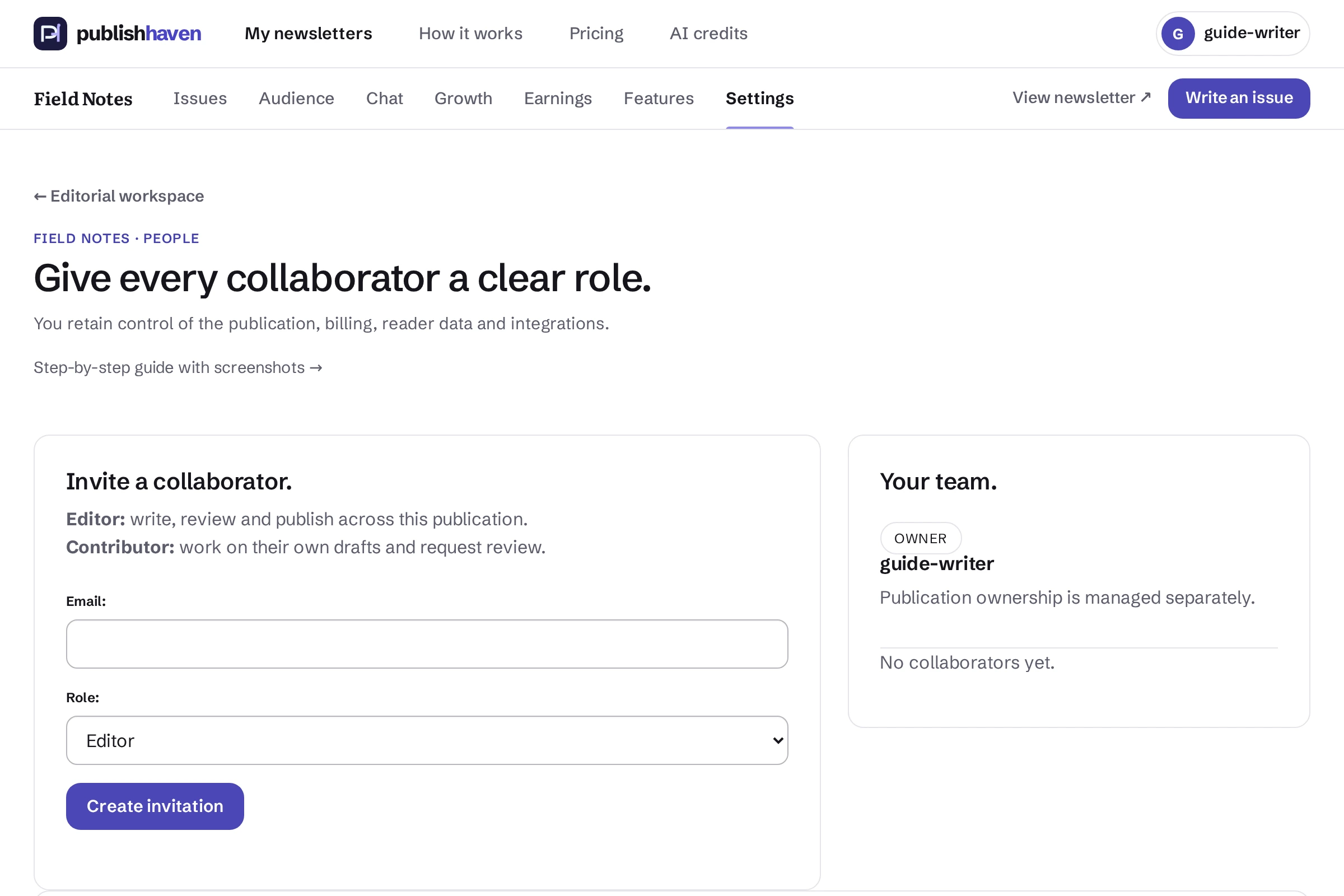
Open Editorial team
From newsletter Settings, open Editorial team.
Choose the role
Enter the collaborator’s address and select Editor or Contributor to match their editorial work.
Create the invitation
Review the address and role, then choose Create invitation. Share the private invitation link with the intended collaborator, who accepts through their own account.
Review access
Return to Editorial team to review pending invitations and active members. Revoke access when the work ends.
What you should see
An invited collaborator receives only the chosen editorial role.
Check before you continue
Use the smallest suitable role. Review access regularly and revoke invitations or membership when no longer needed.
If a step is unavailable
Check the plan and feature status shown in your workspace. “Not released yet” or “Setup on hold” needs platform work. “Connect” or “One step left” links to an action you can take. A pending scan, send or payment must finish before its result is available.
If the result still does not appear, contact support@publishhaven.com with the service name and the visible message. Keep private reading links, passwords and payment details out of the message.