 publish
Post about an issue with the share kit
You copy reviewed posts or download ready sharing artwork.
Before you start
A saved issue. Optional AI rewriting requires an eligible plan and 4 credits.
Where to find it: Newsletter → Issues → Share
Open My newsletters →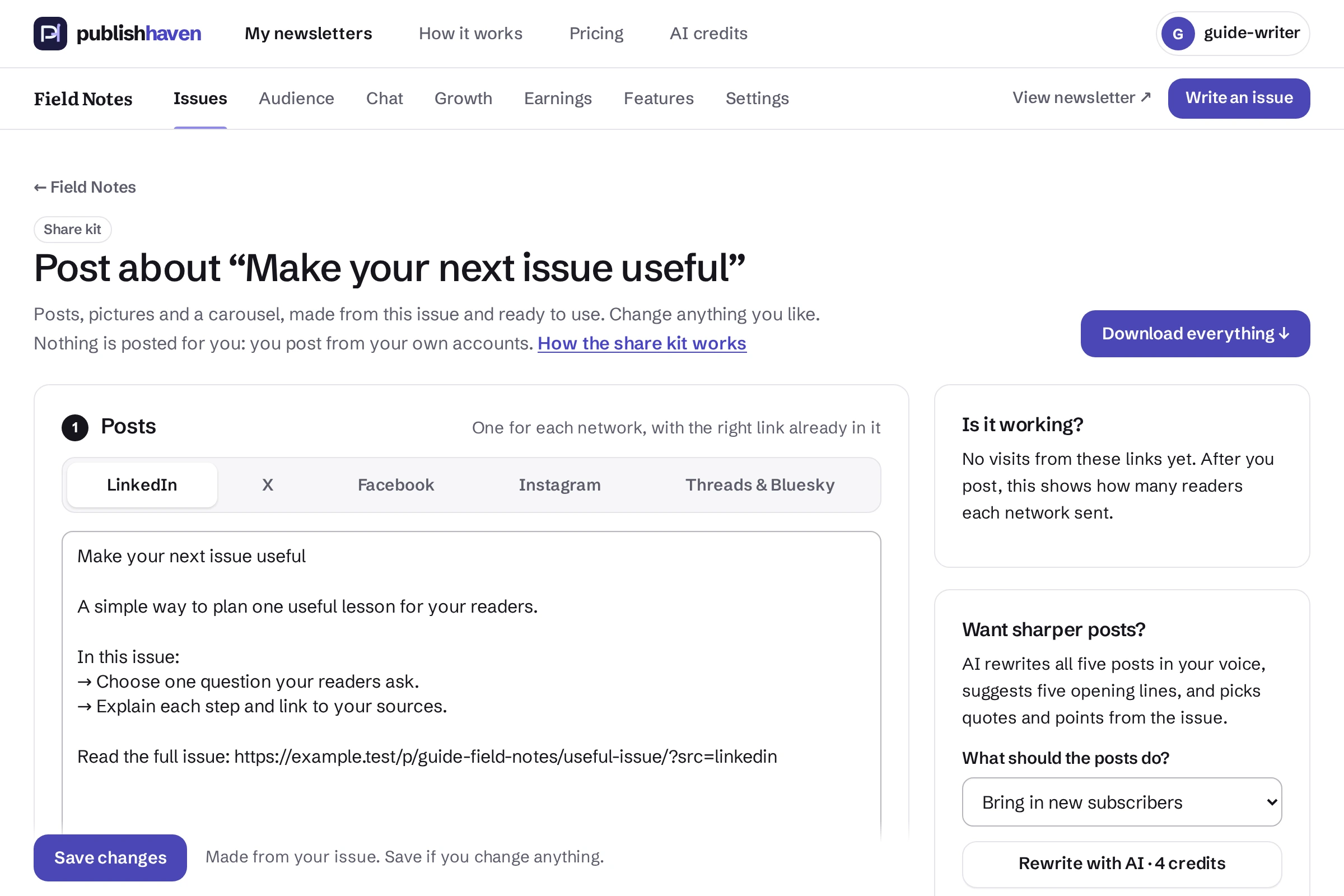
Open Share
Choose Share beside the issue, or Share kit from its More menu.
Choose a network
Use the network tabs to read the ready post. Check the title, destination and claims.
Adapt the words
Edit the post yourself, or use the offered AI rewrite in your saved writing voice for 4 credits. Review the result.
Copy or download
Copy the post and download the offered picture or carousel. You decide where and when to publish it; a download does not post to a social account.
What you should see
You copy reviewed posts or download ready sharing artwork.
Check before you continue
Change any post and press “Save changes”. To change the words on the pictures, open “Words on the pictures”: the headline, the line under it, up to five points for the carousel and up to three quotes. The pictures are redrawn when you save. “Is it working?” shows how many readers each network sent. Nothing is posted for you. On Writer Pro, “Rewrite with AI” rewrites the posts for 4 credits and shows them unsaved for you to read first. A members-only issue gives the kit its title and summary only.
If a step is unavailable
Check the plan and feature status shown in your workspace. “Not released yet” or “Setup on hold” needs platform work. “Connect” or “One step left” links to an action you can take. A pending scan, send or payment must finish before its result is available.
If the result still does not appear, contact support@publishhaven.com with the service name and the visible message. Keep private reading links, passwords and payment details out of the message.