 publish
Prepare newsletter email delivery
Your reviewed newsletter schedule is saved; saving alone does not send.
Before you start
A configured sending service and an accurate newsletter branding footer.
Where to find it: Newsletter → Settings → Newsletter schedule
Open My newsletters →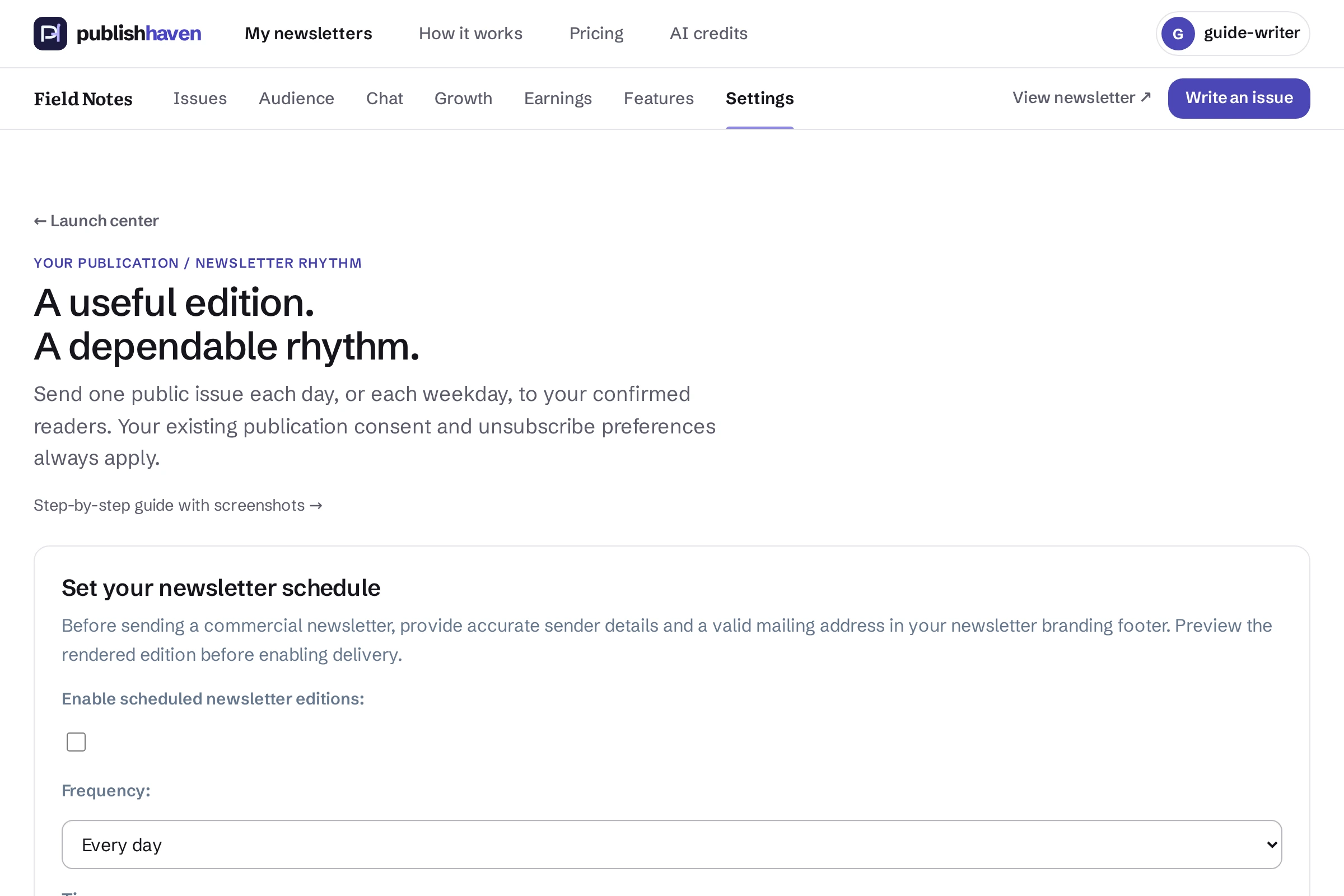
Open Newsletter schedule
From Settings, choose Newsletter schedule.
Review newsletter identity
Use Edit newsletter design to check the sender details and valid mailing address in the branding footer.
Choose the schedule
Review the source issues, interval and timezone in the schedule form. Leave it paused until the edition is ready.
Preview and save
Preview the rendered edition, then save the reviewed schedule. Saving never sends immediately; the worker checks eligible schedules later.
What you should see
Your reviewed newsletter schedule is saved; saving alone does not send.
Check before you continue
A connected sender and accepted email are not proof of inbox delivery. Preserve unsubscribe controls.
If a step is unavailable
Check the plan and feature status shown in your workspace. “Not released yet” or “Setup on hold” needs platform work. “Connect” or “One step left” links to an action you can take. A pending scan, send or payment must finish before its result is available.
If the result still does not appear, contact support@publishhaven.com with the service name and the visible message. Keep private reading links, passwords and payment details out of the message.