 publish
Create reader segments
A saved segment matches the readers you intend to select.
Before you start
An eligible paid plan and subscriber fields or tags.
Where to find it: Newsletter → Audience → Segments
Open My newsletters →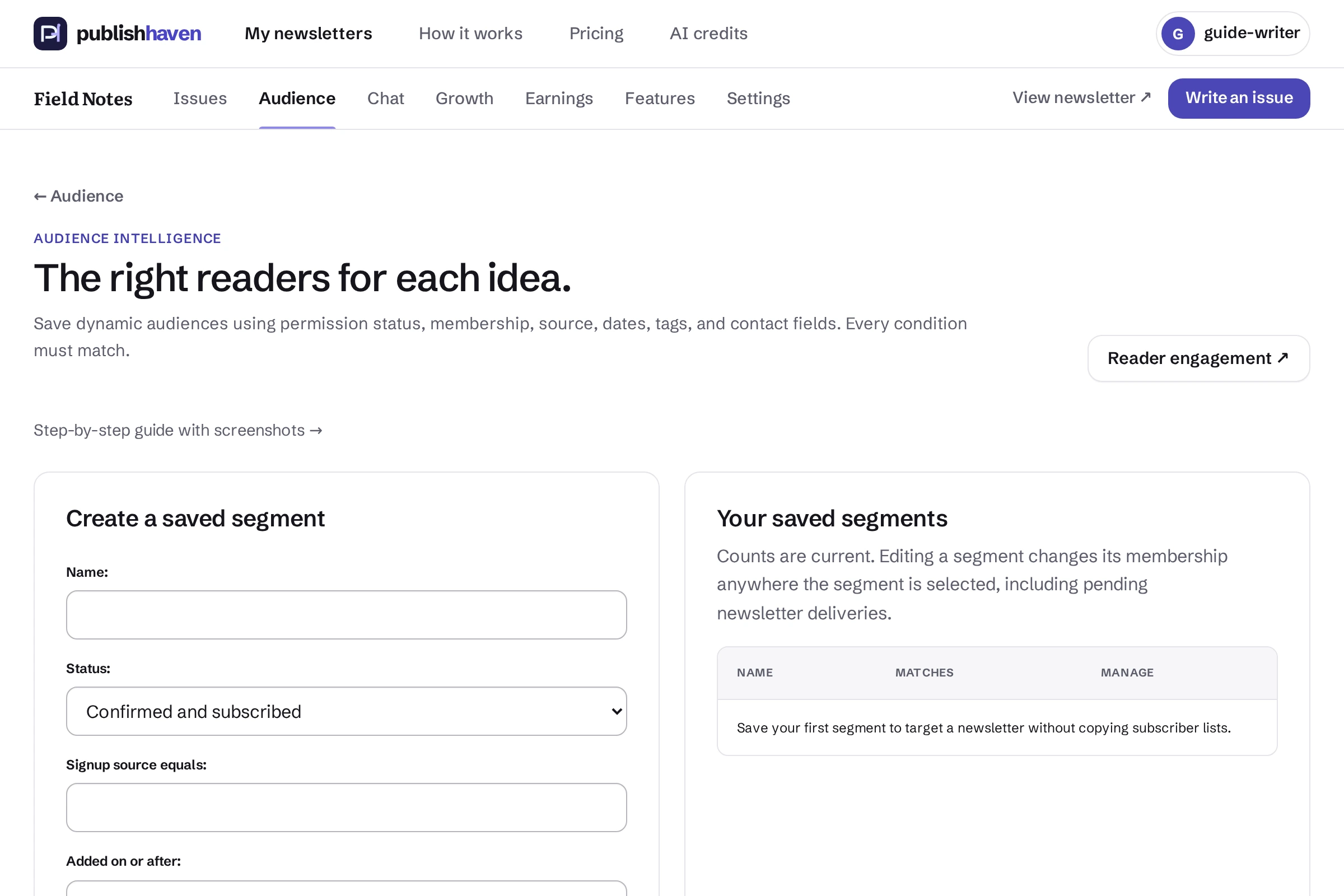
Open Segments
Choose Audience, then segment management.
Define the group
Name the segment and choose the supported conditions for its readers.
Review matched readers
Check the resulting count and sample before using it.
Choose it for an issue
Use the saved segment in the newsletter send controls and review the destination before sending. Opt-outs remain excluded.
What you should see
A saved segment matches the readers you intend to select.
Check before you continue
Review the matched readers before sending. A segment cannot override confirmation or unsubscribe requirements.
If a step is unavailable
Check the plan and feature status shown in your workspace. “Not released yet” or “Setup on hold” needs platform work. “Connect” or “One step left” links to an action you can take. A pending scan, send or payment must finish before its result is available.
If the result still does not appear, contact support@publishhaven.com with the service name and the visible message. Keep private reading links, passwords and payment details out of the message.