 publish
Turn your sources into a draft
A private draft from reviewed sources, ready for your editing.
Before you start
Your own notes, a permitted public page or a text PDF up to 2 MB and 40 pages.
Where to find it: Newsletter → Issues → Research desk
Open My newsletters →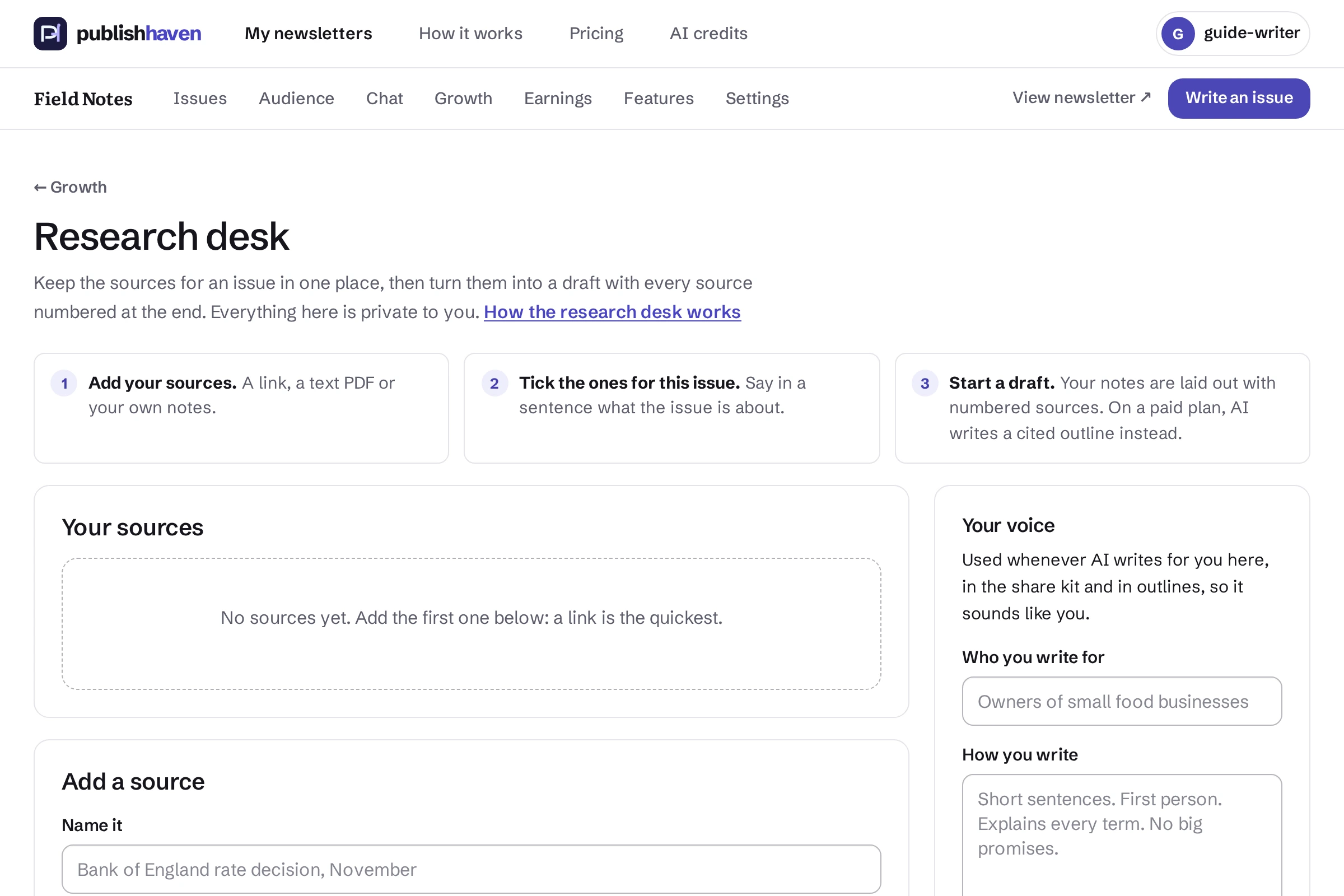
Add a source
Open Research desk. Name the source, add its link or your notes, or choose a PDF. Confirm you are allowed to use it.
Read and verify the notes
Choose Save my notes, Read the page for me or Read the PDF. Compare imported notes with the original and mark them as checked.
Choose the source material
Tick the sources for this issue and describe what the issue is about.
Start and edit the draft
Choose Start a draft from my notes, or the eligible 4-credit cited outline. Check every citation, edit the draft and preview it before publishing.
What you should see
A private draft from reviewed sources, ready for your editing.
Check before you continue
Nothing is published by this; it is a draft like any other. “Mark as checked” is for your own record that you compared the notes with the original; a draft says which sources are not checked yet. On Writer Pro, “Write a cited outline with AI” costs 4 credits and sends the ticked notes to our AI provider. Every point in the outline ends with a source number in square brackets, and points without one are left out. “Learn it from my issues” (2 credits) sends your last few public issues to our AI provider and fills in “Your voice”. If nothing usable comes back, the credits are returned.
If a step is unavailable
Check the plan and feature status shown in your workspace. “Not released yet” or “Setup on hold” needs platform work. “Connect” or “One step left” links to an action you can take. A pending scan, send or payment must finish before its result is available.
If the result still does not appear, contact support@publishhaven.com with the service name and the visible message. Keep private reading links, passwords and payment details out of the message.