 publish
Manage or cancel a reader membership
You can review billing or cancel renewal without changing your email subscription.
Before you start
The reading link sent to your subscribed address.
Where to find it: Newsletter → private reading link → Membership
Open My newsletters →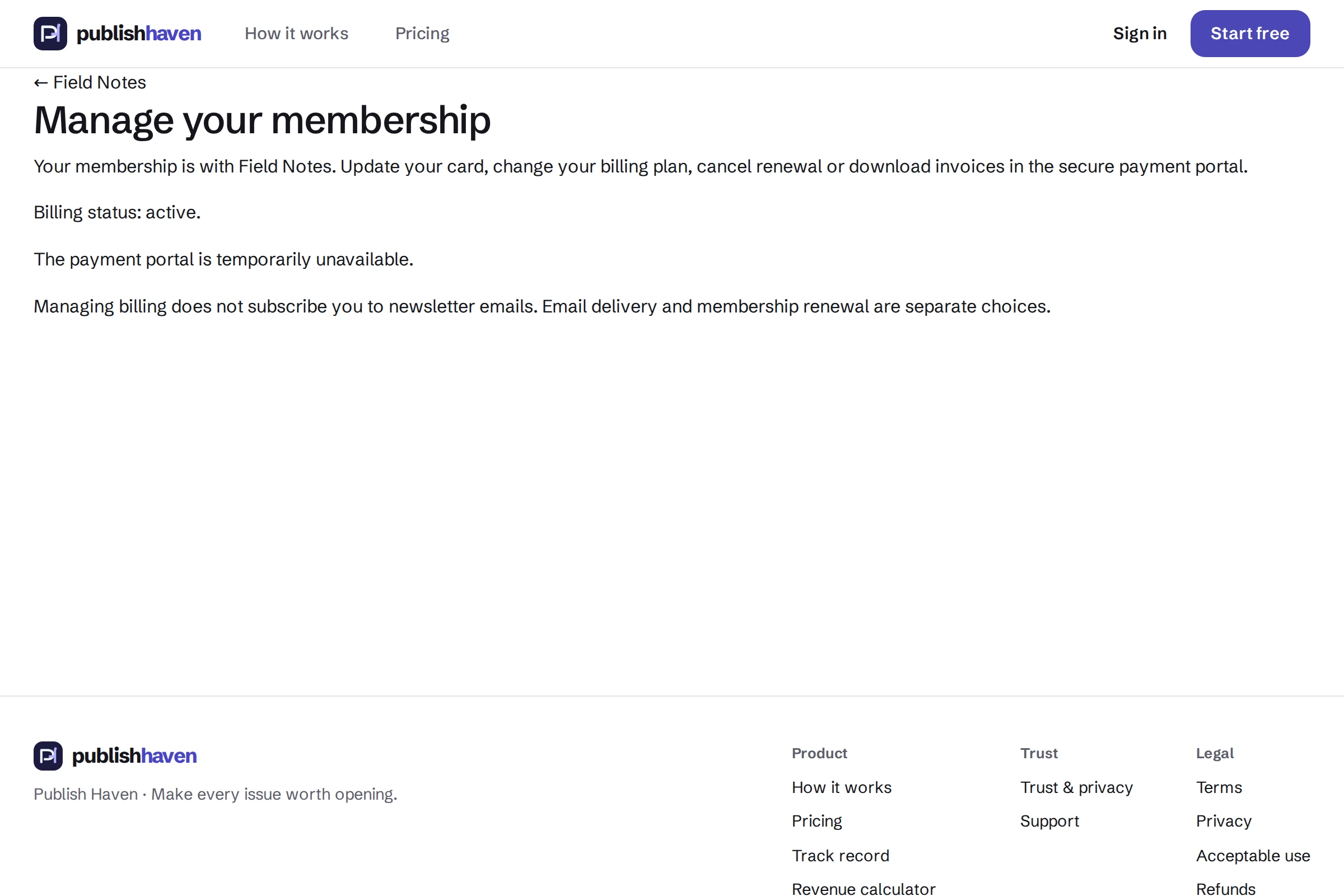
Open your private reading link
Follow the reading link in a newsletter email on the device you want to use.
Open Membership
Use the newsletter’s membership link to see your plan and paid-through date.
Manage billing
Choose the billing portal for card details and invoices. Stripe hosts that page.
Review a cancellation
If you cancel renewal, check the resulting status and access end date. Unsubscribe separately if you also want newsletter emails to stop.
What you should see
You can review billing or cancel renewal without changing your email subscription.
Check before you continue
Canceling renewal and unsubscribing from email are separate actions. A canceled membership can retain access through its paid-through date. If a payment fails, the notice explains the grace period and how to update your card.
If a step is unavailable
Check the plan and feature status shown in your workspace. “Not released yet” or “Setup on hold” needs platform work. “Connect” or “One step left” links to an action you can take. A pending scan, send or payment must finish before its result is available.
If the result still does not appear, contact support@publishhaven.com with the service name and the visible message. Keep private reading links, passwords and payment details out of the message.