 publish
The fee on reader payments
You can distinguish the platform share, writer plan price and card fee.
Before you start
No setup is needed to read the fee table.
Where to find it: Pricing → Fee on reader payments
Open My newsletters →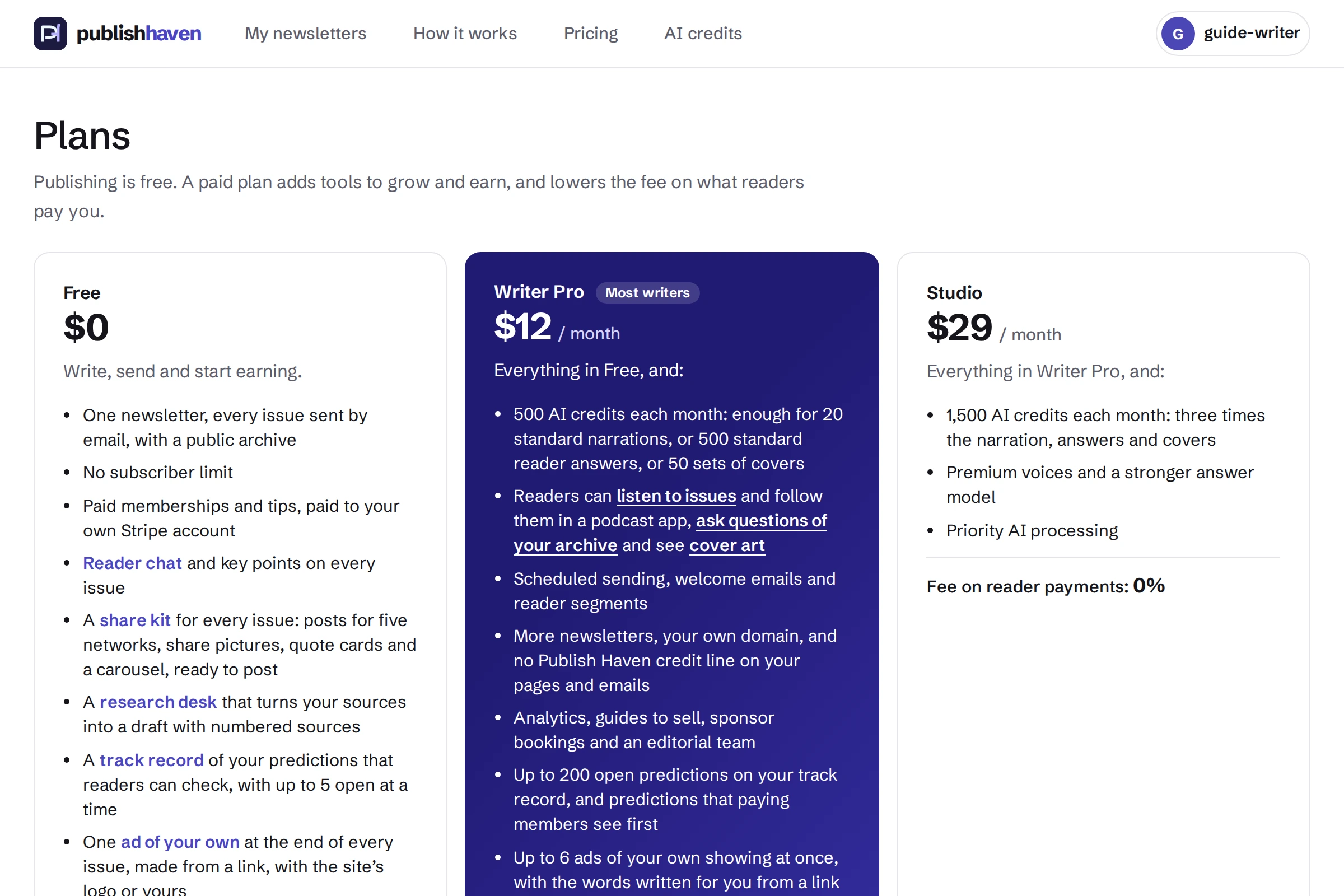
Read your plan’s rate
Open Pricing and find the reader-payment fee shown for Free, Writer Pro and Studio.
Separate the card fee
Stripe card processing is separate from Publish Haven’s share. Read the offer in your connected account for your actual card fees.
Compare with your own numbers
Use the revenue calculator with your audience, price and paid conversion scenario.
Check after a plan change
New one-time payments use your current plan rate. Running memberships change from their next renewal; memberships started before 4 October 2026 keep their original rate.
What you should see
You can distinguish the platform share, writer plan price and card fee.
Check before you continue
A one-time payment uses the share for the plan you are on that day. If you change plan, memberships that are already running move to the new share from their next renewal. You do not need to do anything. Memberships that began before 4 October 2026 keep the share they started with.
If a step is unavailable
Check the plan and feature status shown in your workspace. “Not released yet” or “Setup on hold” needs platform work. “Connect” or “One step left” links to an action you can take. A pending scan, send or payment must finish before its result is available.
If the result still does not appear, contact support@publishhaven.com with the service name and the visible message. Keep private reading links, passwords and payment details out of the message.