 publish
Set up paid reader memberships
Readers see a Stripe-hosted membership checkout at your chosen price.
Before you start
Your own Stripe account, onboarding completion and an eligible paid offer.
Where to find it: Newsletter → Earnings and Settings
Open My newsletters →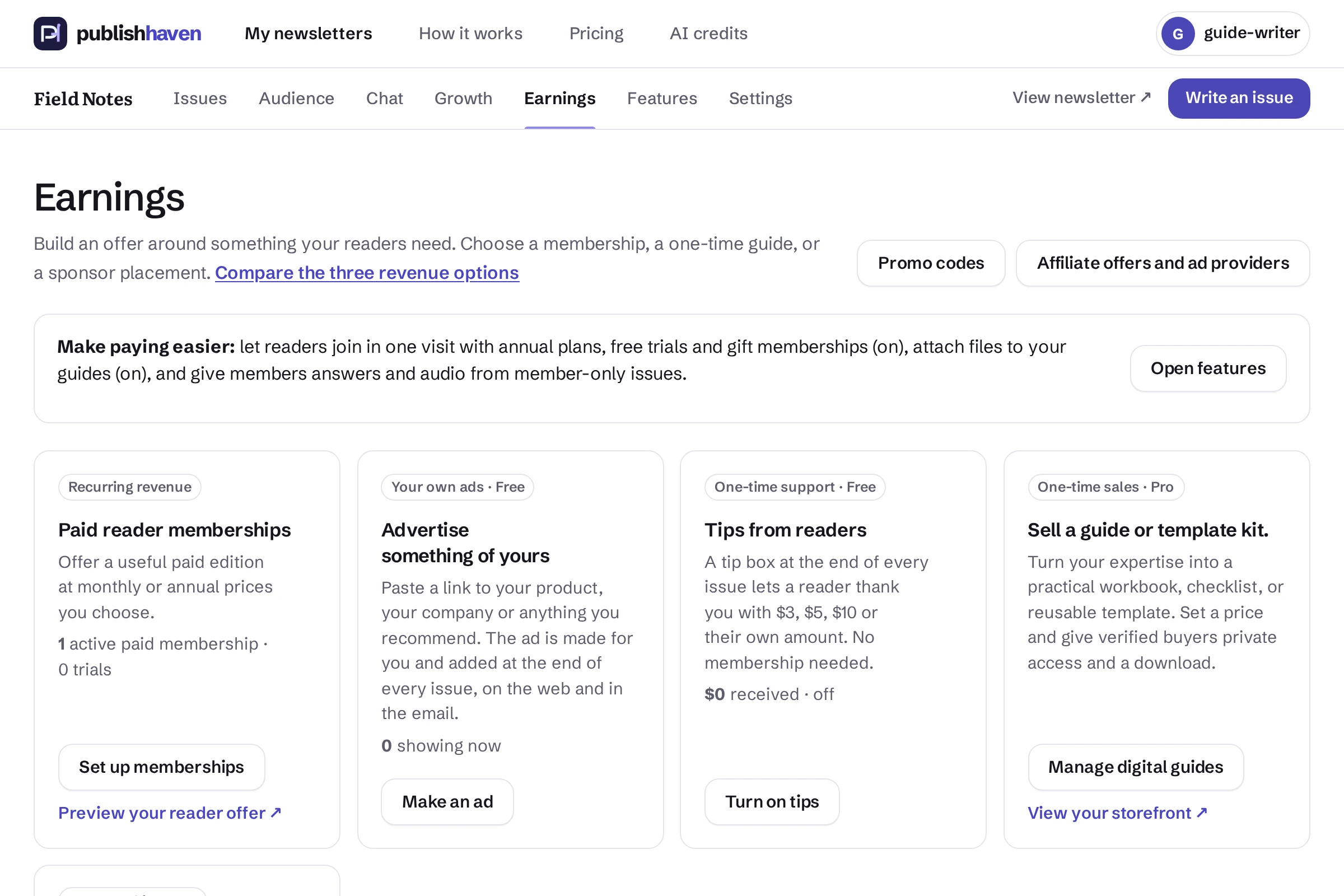
Connect Stripe
Open the newsletter’s payment settings and complete Stripe onboarding. Check the connection status when you return.
Set the prices
Enter monthly and annual membership prices. New offers start at $5 monthly and $50 yearly; an empty annual field uses ten times the monthly price.
Choose paid content
In an issue’s editor, choose paid access for the edition you want members to receive.
Review the subscribe page
Open the public Subscribe page and verify the offer. Check paid access with a separate reader account; existing members keep their original subscription price.
What you should see
Readers see a Stripe-hosted membership checkout at your chosen price.
Check before you continue
Readers pay your connected account through Stripe-hosted Checkout. Existing subscriptions keep their original price when you change an offer. Choose paid access in the issue editor, then test with a reader account that has no membership.
If a step is unavailable
Check the plan and feature status shown in your workspace. “Not released yet” or “Setup on hold” needs platform work. “Connect” or “One step left” links to an action you can take. A pending scan, send or payment must finish before its result is available.
If the result still does not appear, contact support@publishhaven.com with the service name and the visible message. Keep private reading links, passwords and payment details out of the message.