 publish
Design your newsletter
Saved branding and an email design you have previewed.
Before you start
Your logo or pictures and useful image descriptions.
Where to find it: Newsletter → Settings → Design
Open My newsletters →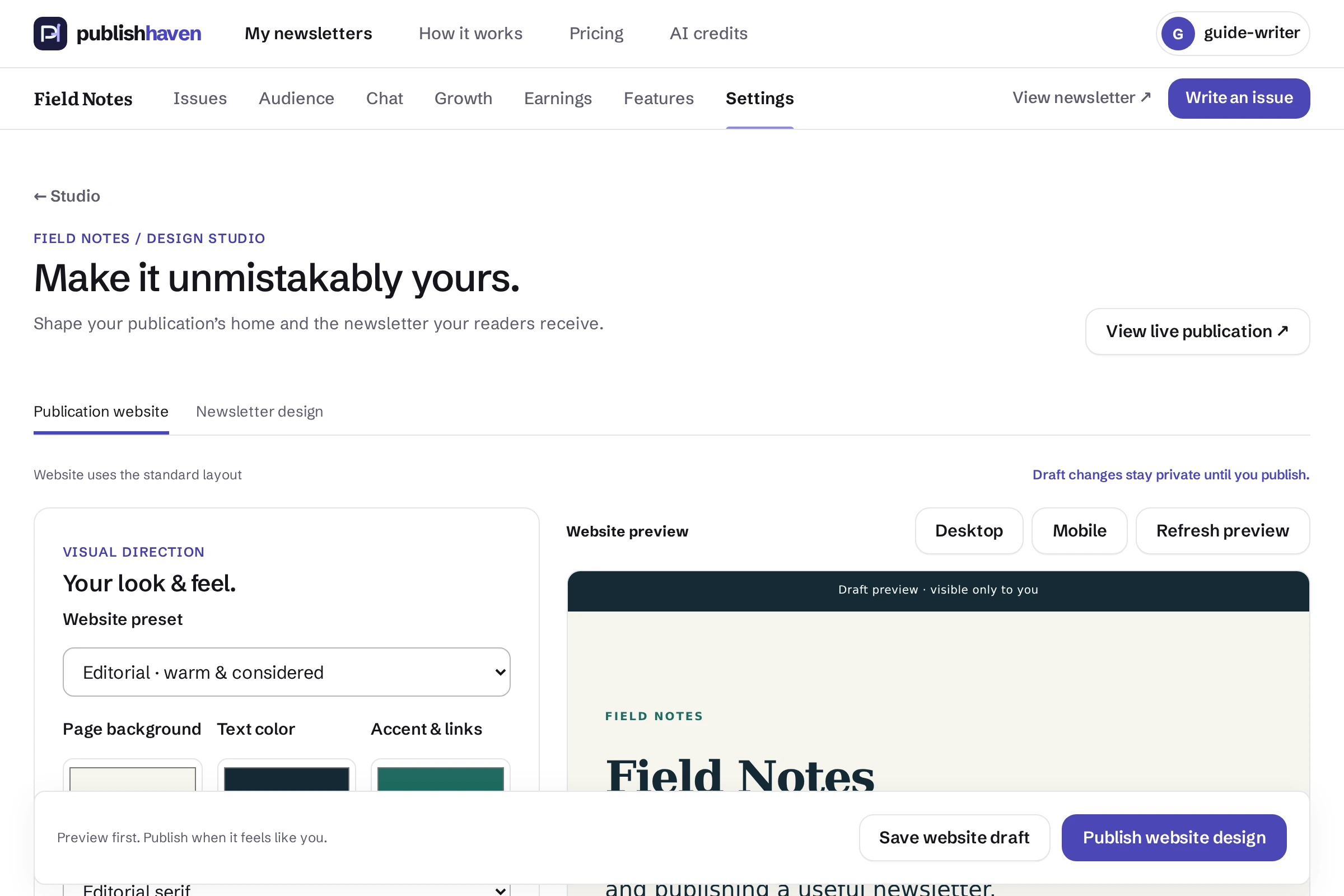
Open Design
In newsletter Settings, open the design controls. Review sender name, branding and email style.
Make small changes
Choose readable colors and type, add your logo and write useful alternative text for images.
Preview web and email
Use the preview controls and check a phone-sized layout. Keep the unsubscribe link visible.
Save the design
Save or publish the design using the controls shown. Send yourself a preview before a major change.
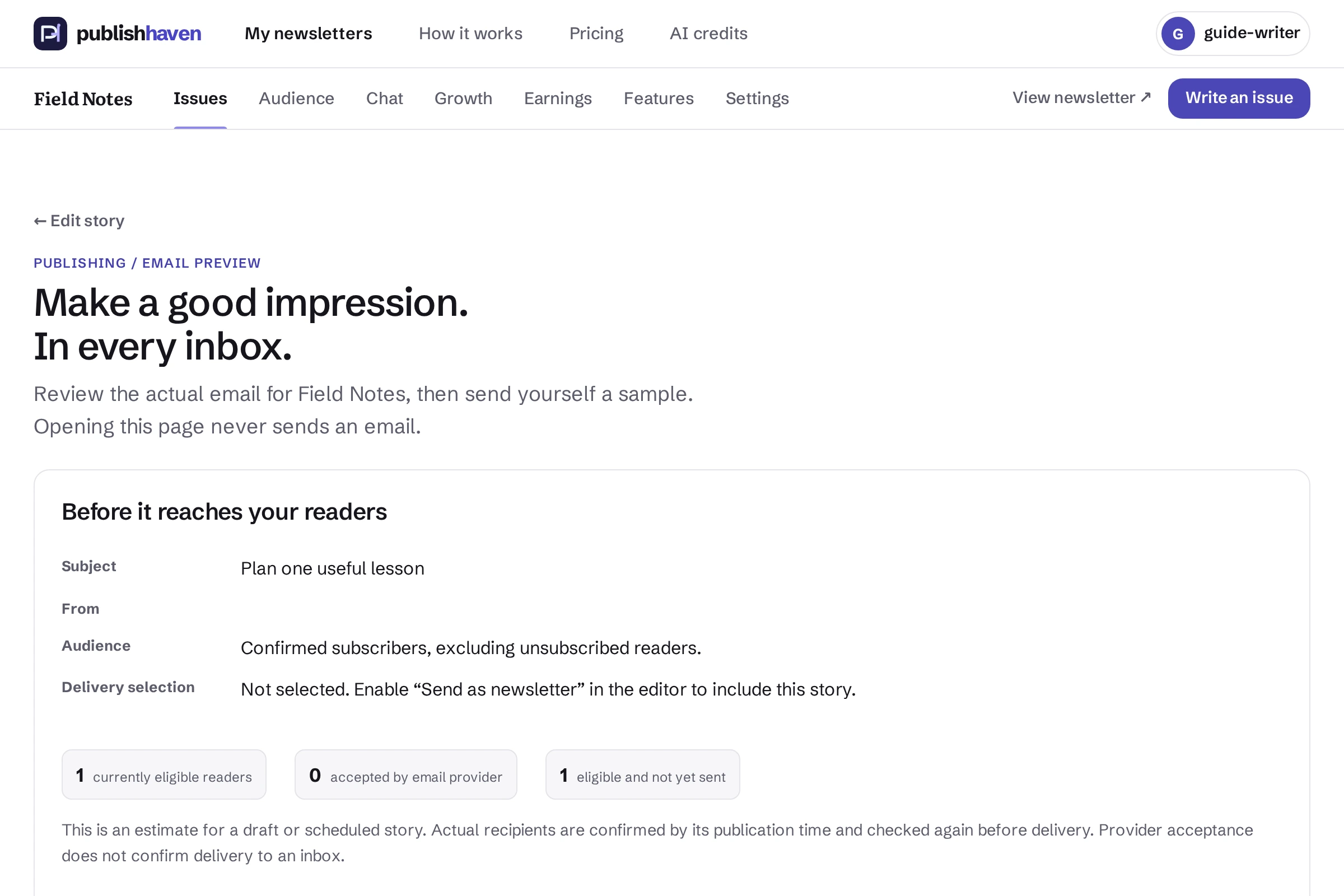
Save the design · Example workspace. Open the image to view it at full size.
What you should see
Saved branding and an email design you have previewed.
Check before you continue
Send yourself a preview before a major design change. Check both desktop and phone layouts. The email includes an unsubscribe option; branding changes must keep that link visible and usable.
If a step is unavailable
Check the plan and feature status shown in your workspace. “Not released yet” or “Setup on hold” needs platform work. “Connect” or “One step left” links to an action you can take. A pending scan, send or payment must finish before its result is available.
If the result still does not appear, contact support@publishhaven.com with the service name and the visible message. Keep private reading links, passwords and payment details out of the message.