 publish
Listen to issues and use a private podcast feed
A ready player on the issue and a newsletter listening page.
Before you start
A paid plan, release, published issues and processing consent.
Where to find it: Newsletter → Reader & revenue features → Listen to this issue
Open My newsletters →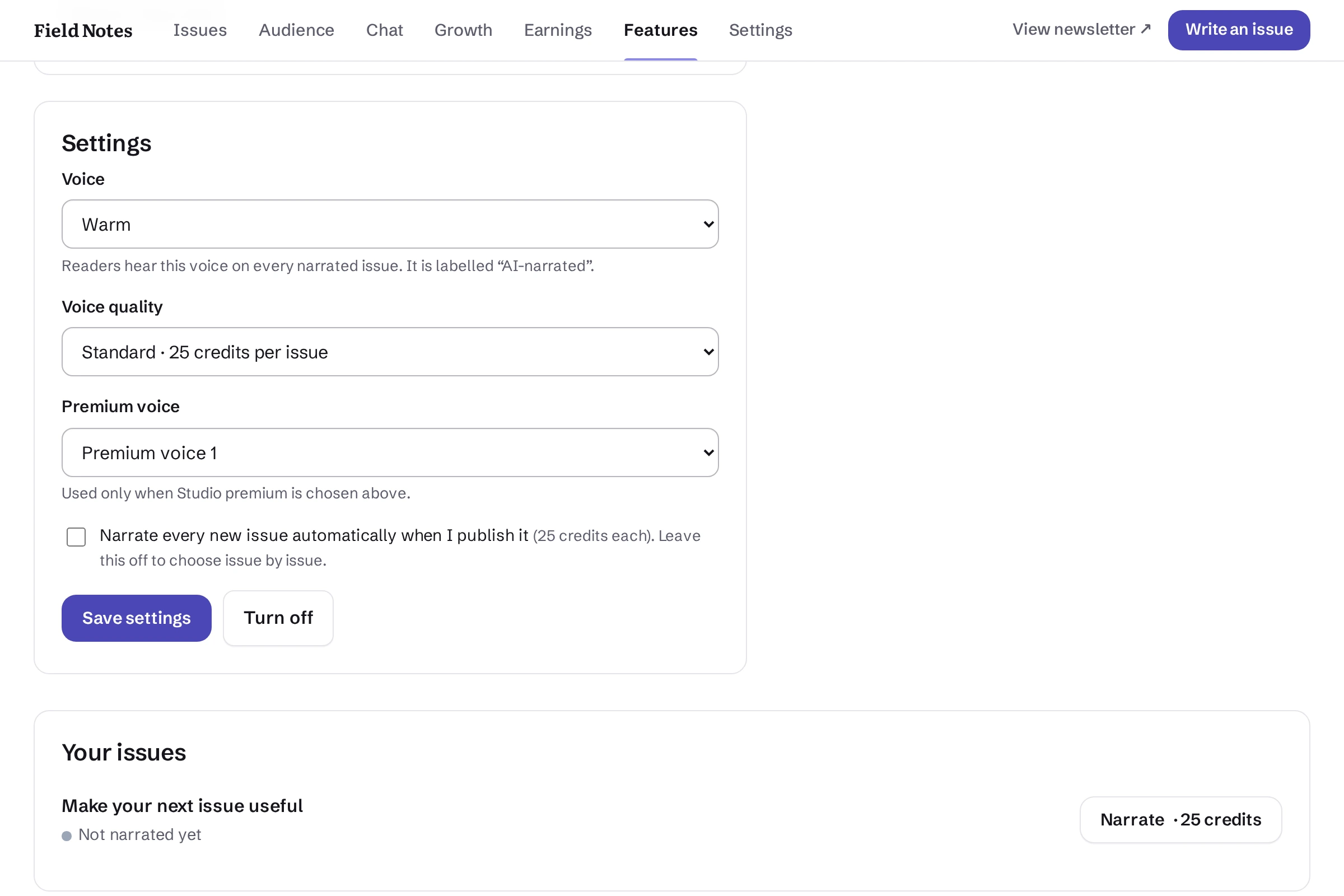
Choose the voice
Open Listen to this issue, turn it on and select the standard voice or Studio premium voice. Check the selected 25- or 60-credit rate.
Narrate an issue
Press Narrate beside a published issue. Wait for Ready. A failed job refunds its reserved credits.
Check playback
Open the issue or listening page. Try playback, seeking and speed. Paid issues show other readers a one-minute preview.
Choose future behavior
Enable automatic narration only if you want each new published issue narrated. Members can add their private podcast feed; regenerate it if shared by mistake.
What you should see
A ready player on the issue and a newsletter listening page.
Check before you continue
Your personal feed link grants access to your eligible episodes. Keep it private. Regenerating it revokes the old link. Writers can upload square podcast artwork or generate four options with their newsletter name added in crisp lettering. Generating costs ten credits, with up to five sets per day. Choosing an option publishes a 3,000-pixel square JPEG in the feed; unchosen options expire after seven days. Generate a new set after renaming the newsletter. Writers explicitly choose whether a contact email appears publicly. Studio stock voices require an active Studio plan.
If a step is unavailable
Check the plan and feature status shown in your workspace. “Not released yet” or “Setup on hold” needs platform work. “Connect” or “One step left” links to an action you can take. A pending scan, send or payment must finish before its result is available.
If the result still does not appear, contact support@publishhaven.com with the service name and the visible message. Keep private reading links, passwords and payment details out of the message.