 publish
Import and export your audience
The reviewed import is saved, or your subscriber CSV is downloaded.
Before you start
A CSV exported by your previous service and permission to email those readers.
Where to find it: Newsletter → Audience → Manage subscribers
Open My newsletters →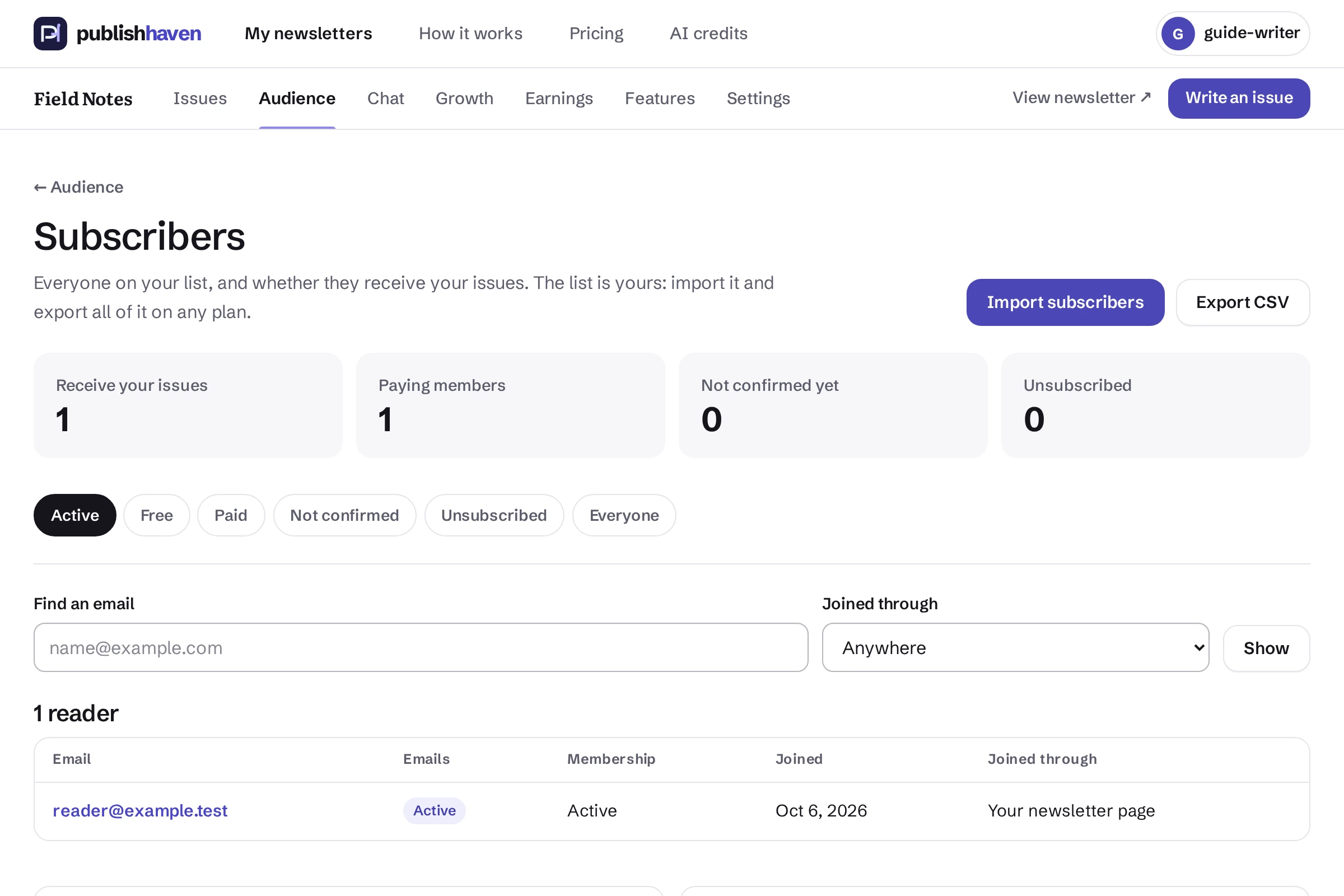
Open the subscriber list
Choose Audience, then Manage subscribers. Download Export CSV whenever you need a private copy of the list.
Choose the CSV
Select Import subscribers and upload the file exported from your previous service. Choose the fallback status for readers whose file has no status column. Choose Not confirmed yet unless you know they already receive your newsletter; this choice never overrides file statuses or opt-outs.
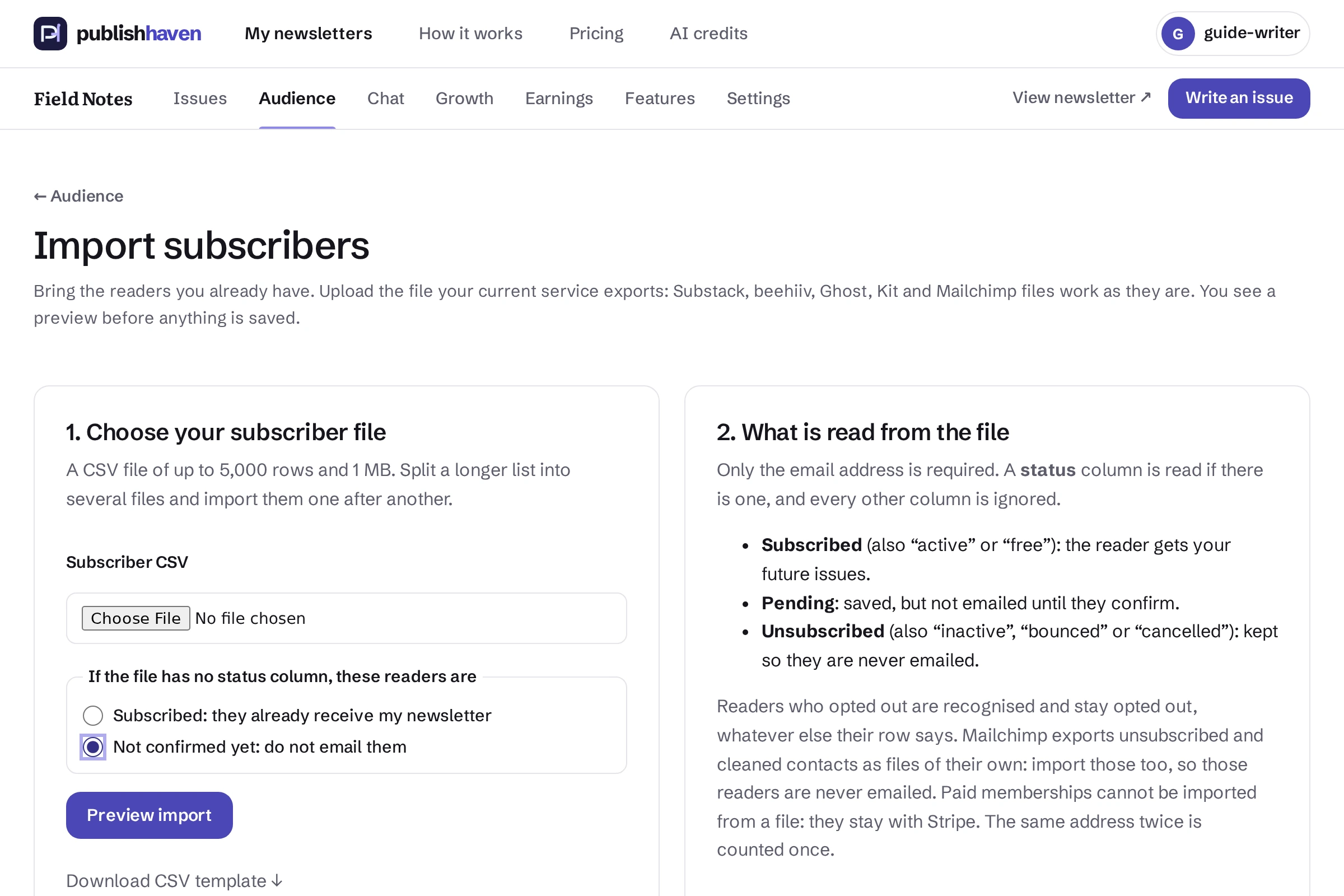
Choose the CSV · Example workspace. Open the image to view it at full size. Review the preview
Check the sample addresses and statuses, and confirm the readers agreed to receive this newsletter. Existing opt-outs stay opted out.
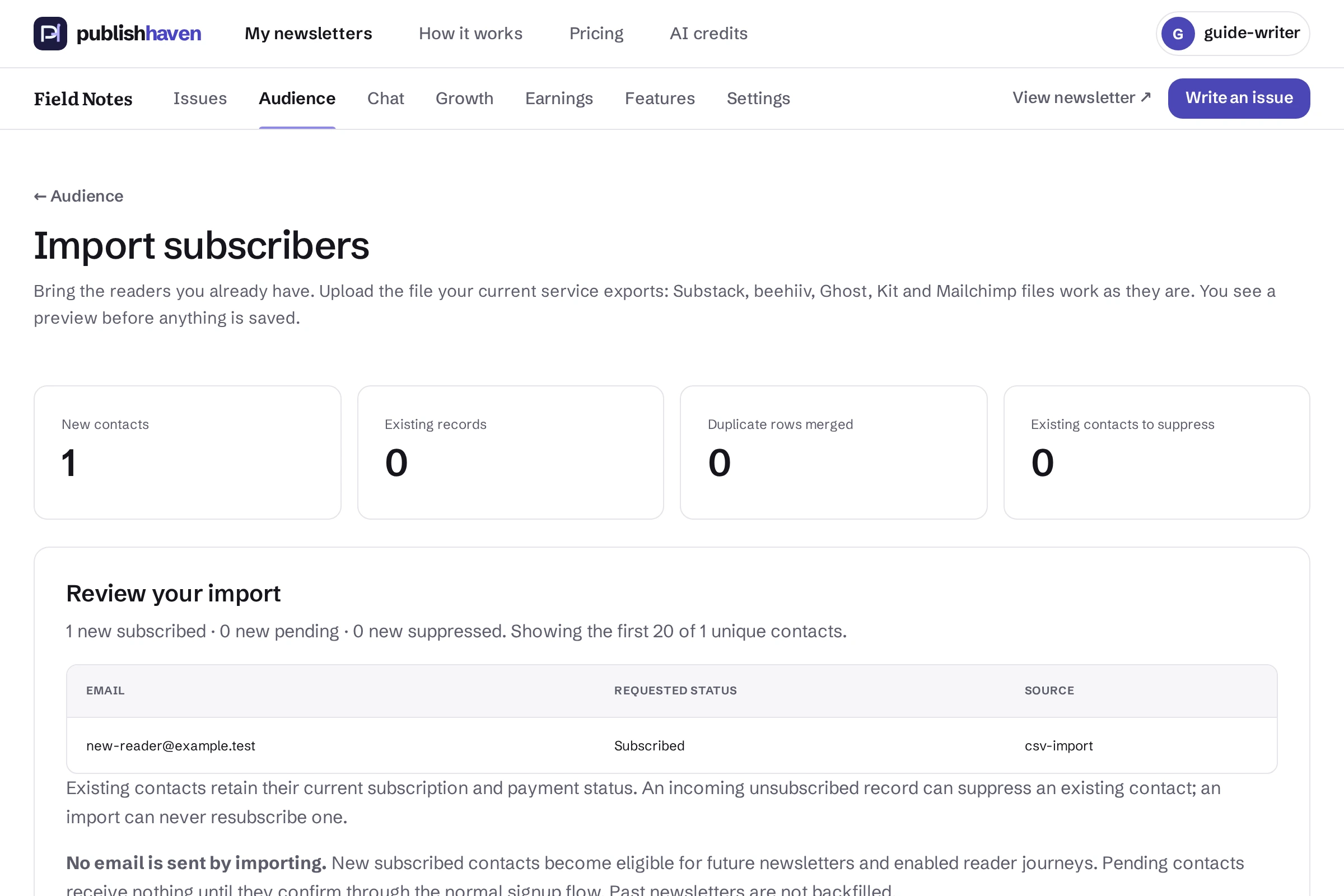
Review the preview · Example workspace. Open the image to view it at full size. Confirm the import
Save only after reviewing. Free imports up to 2,500 readers in total; Writer Pro has no import limit. Keep exported files private.
What you should see
The reviewed import is saved, or your subscriber CSV is downloaded.
Check before you continue
Exports contain personal information. Keep them private and delete local copies when they are no longer needed. Never use an export to resubscribe a reader who has opted out.
If a step is unavailable
Check the plan and feature status shown in your workspace. “Not released yet” or “Setup on hold” needs platform work. “Connect” or “One step left” links to an action you can take. A pending scan, send or payment must finish before its result is available.
If the result still does not appear, contact support@publishhaven.com with the service name and the visible message. Keep private reading links, passwords and payment details out of the message.