 publish
Create your first newsletter
Your newsletter workspace is ready, with a private first draft.
Before you start
A confirmed writer account. Start on Free.
Where to find it: My newsletters → New newsletter
Open My newsletters →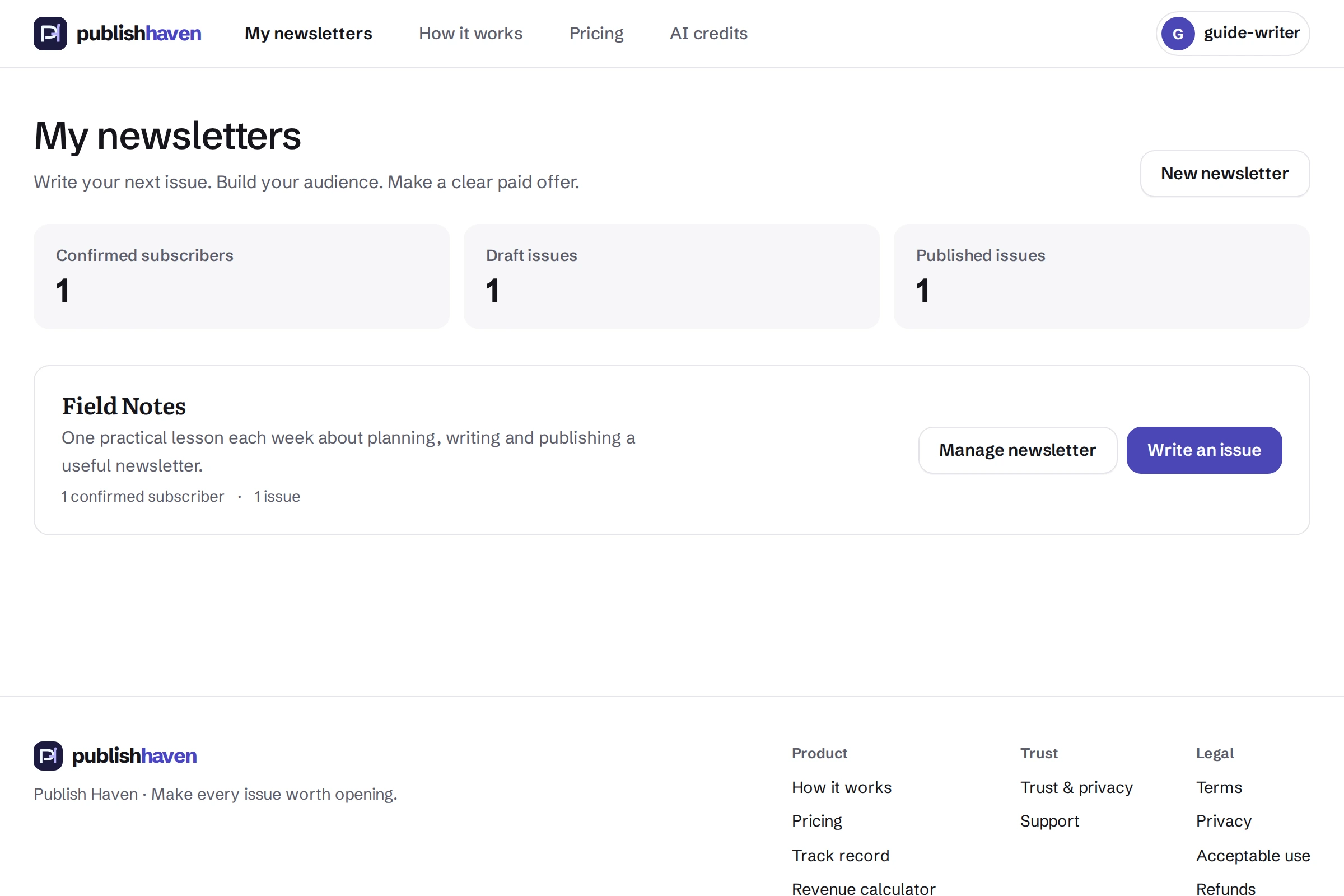
Create the newsletter
Sign in, open My newsletters and choose New newsletter. Enter a title, address and description that tells readers what to expect.
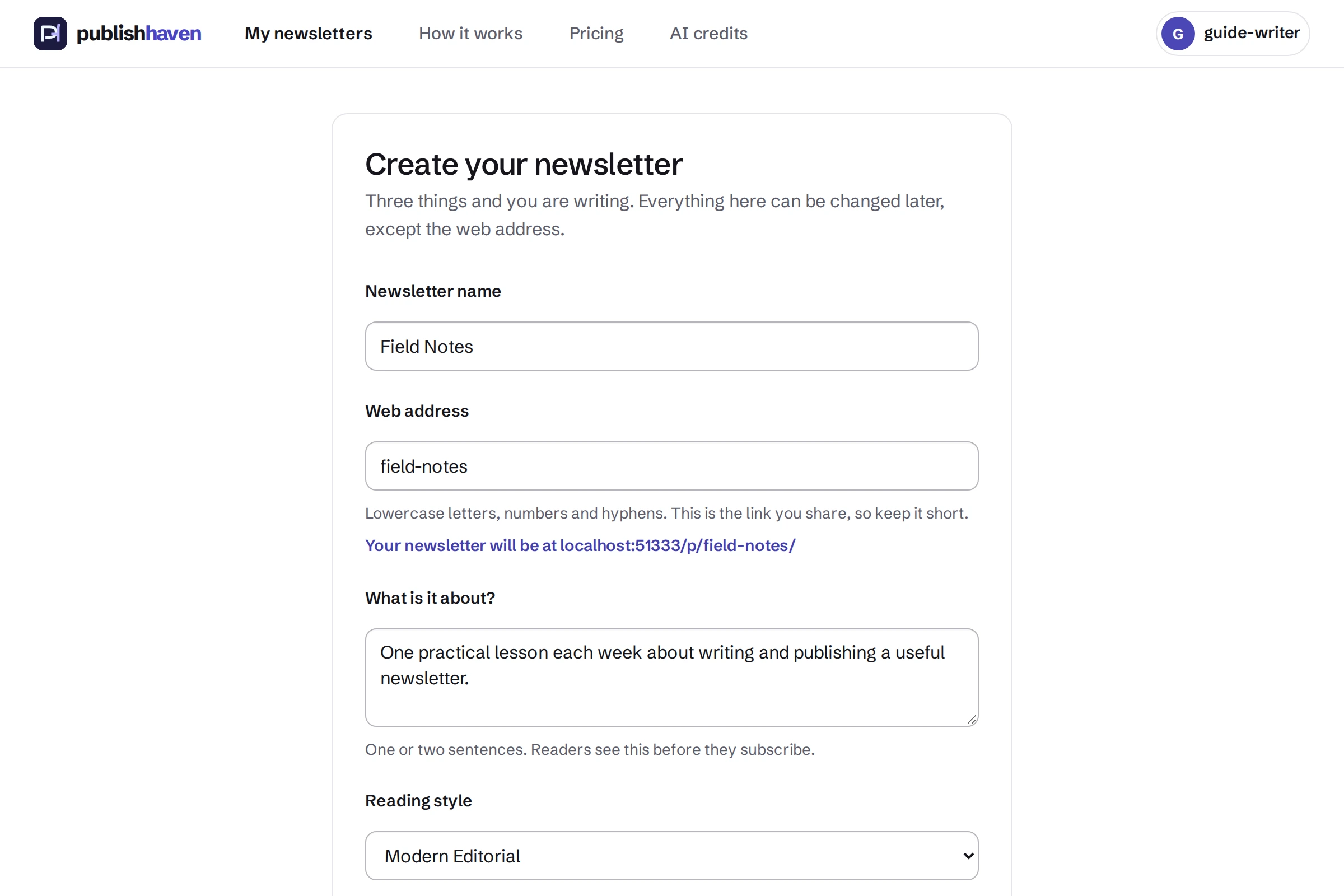
Create the newsletter · Example workspace. Open the image to view it at full size. Save and open it
Save the form, then open the newsletter from My newsletters. Use the section bar to move between Issues, Audience, Growth, Earnings, Features and Settings.
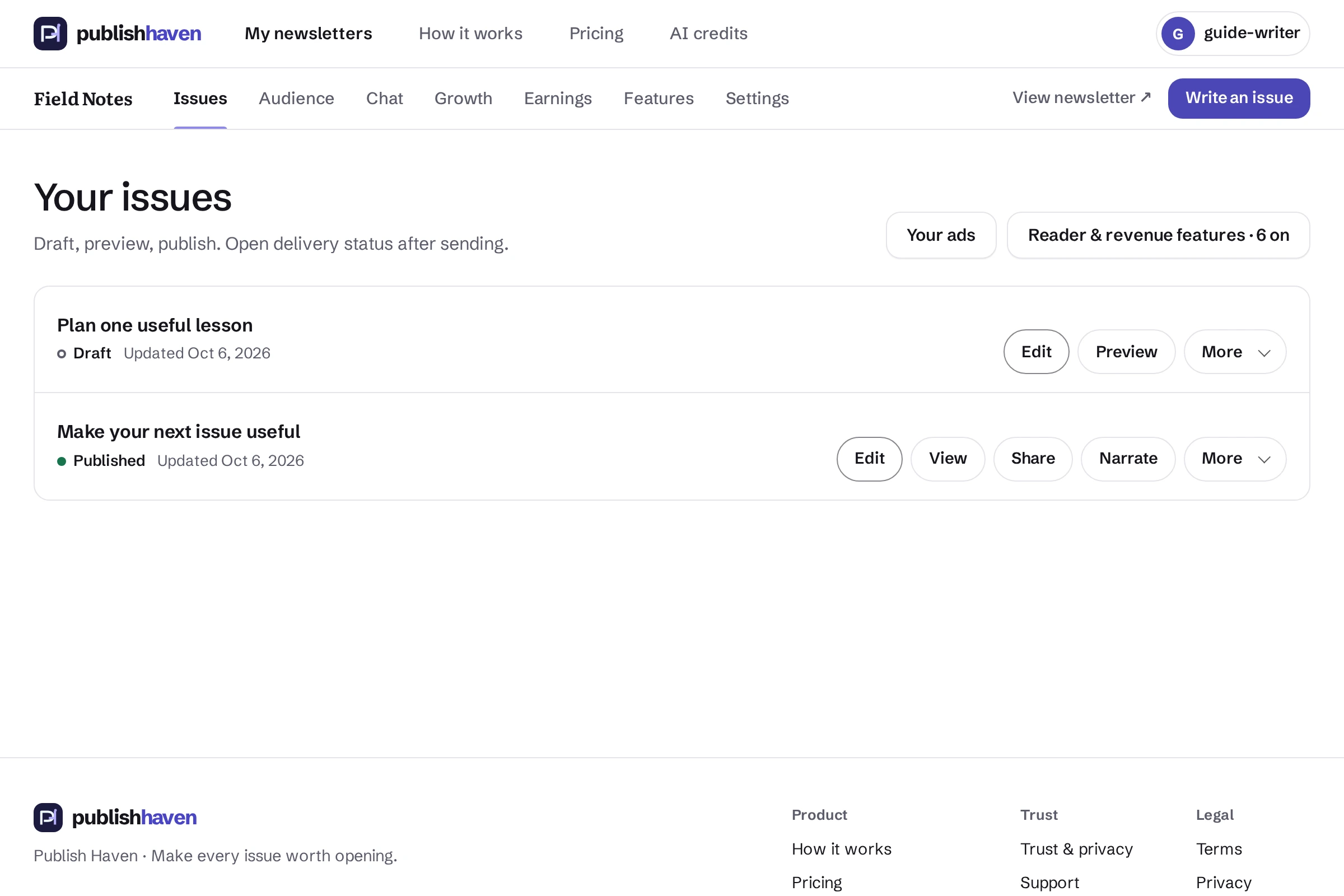
Save and open it · Example workspace. Open the image to view it at full size. Write your first issue
Choose Write an issue. Add a title, short summary and useful body. Save it as a draft.
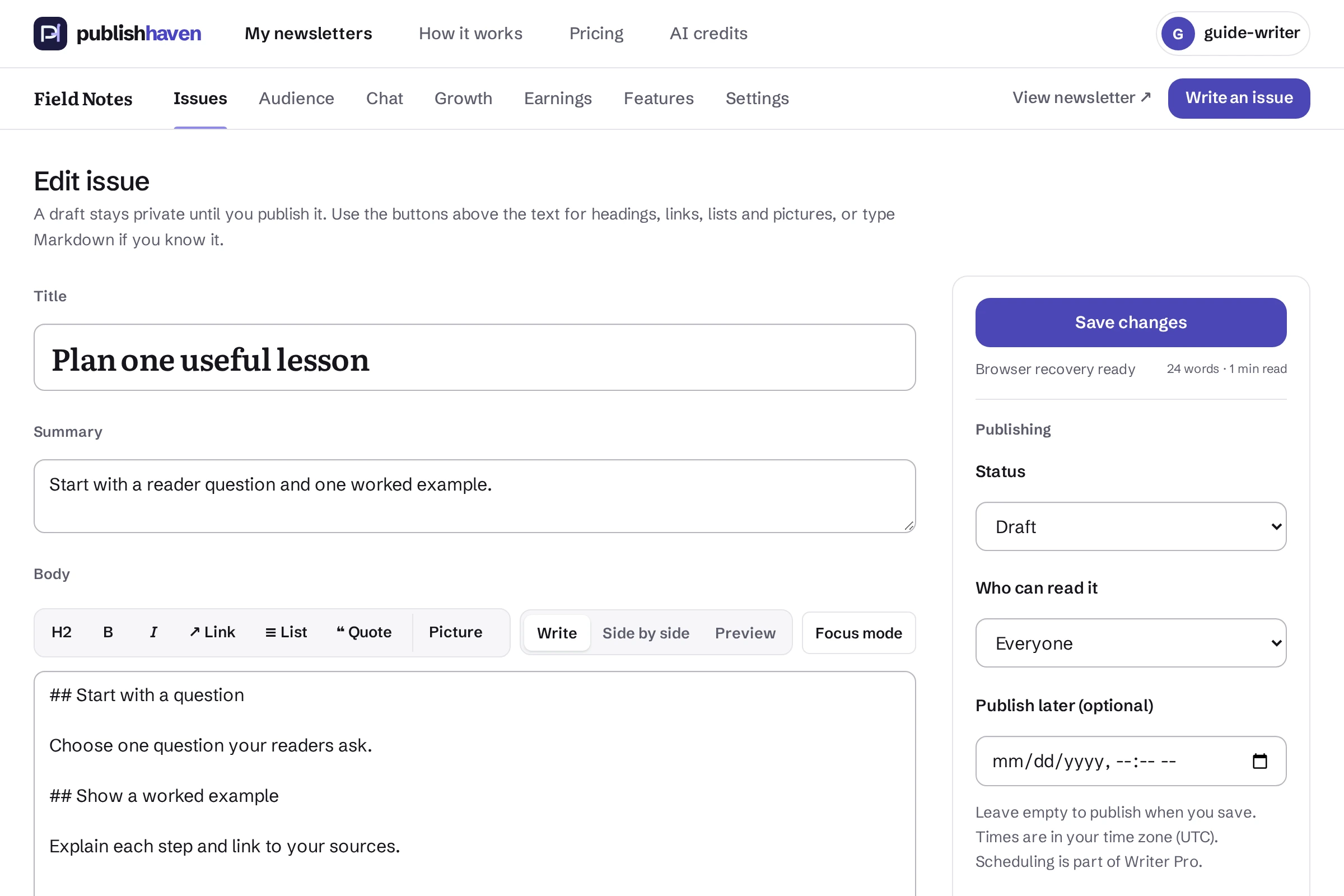
Write your first issue · Example workspace. Open the image to view it at full size. Preview before publishing
Open Preview from the issue list. Check the web page and email. Publish only when the issue is ready.
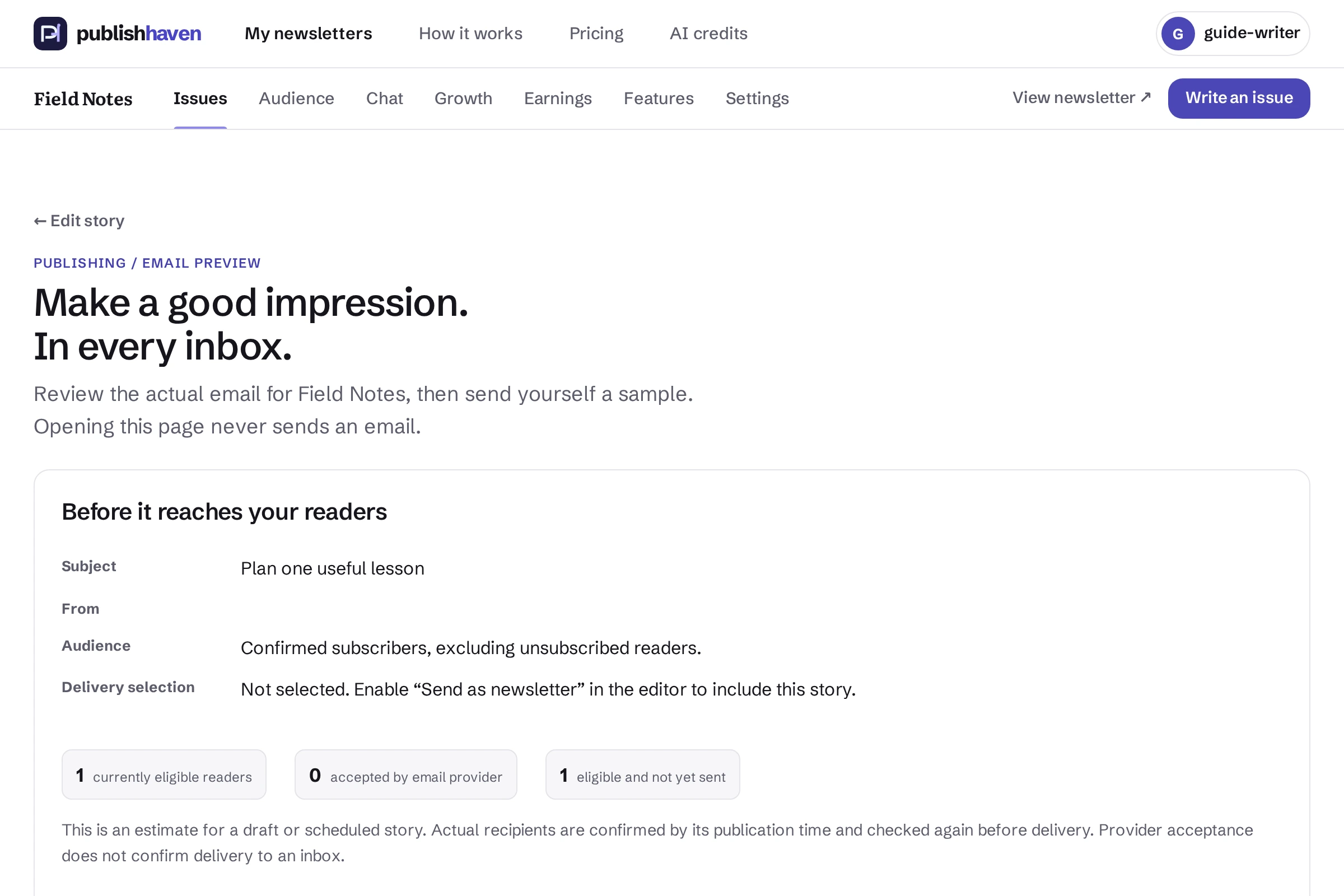
Preview before publishing · Example workspace. Open the image to view it at full size.
What you should see
Your newsletter workspace is ready, with a private first draft.
Check before you continue
Write a draft before inviting readers. Preview the web edition and the email, check your links, and publish a public issue. Drafts stay private. Use the newsletter workspace to find your issues, audience, growth tools and earnings.
If a step is unavailable
Check the plan and feature status shown in your workspace. “Not released yet” or “Setup on hold” needs platform work. “Connect” or “One step left” links to an action you can take. A pending scan, send or payment must finish before its result is available.
If the result still does not appear, contact support@publishhaven.com with the service name and the visible message. Keep private reading links, passwords and payment details out of the message.