 publish
Sell a digital guide
A published guide with a clear price; verified buyers receive private access.
Before you start
Writer Pro or Studio, connected payments and your own guide content.
Where to find it: Newsletter → Earnings → Guides
Open My newsletters →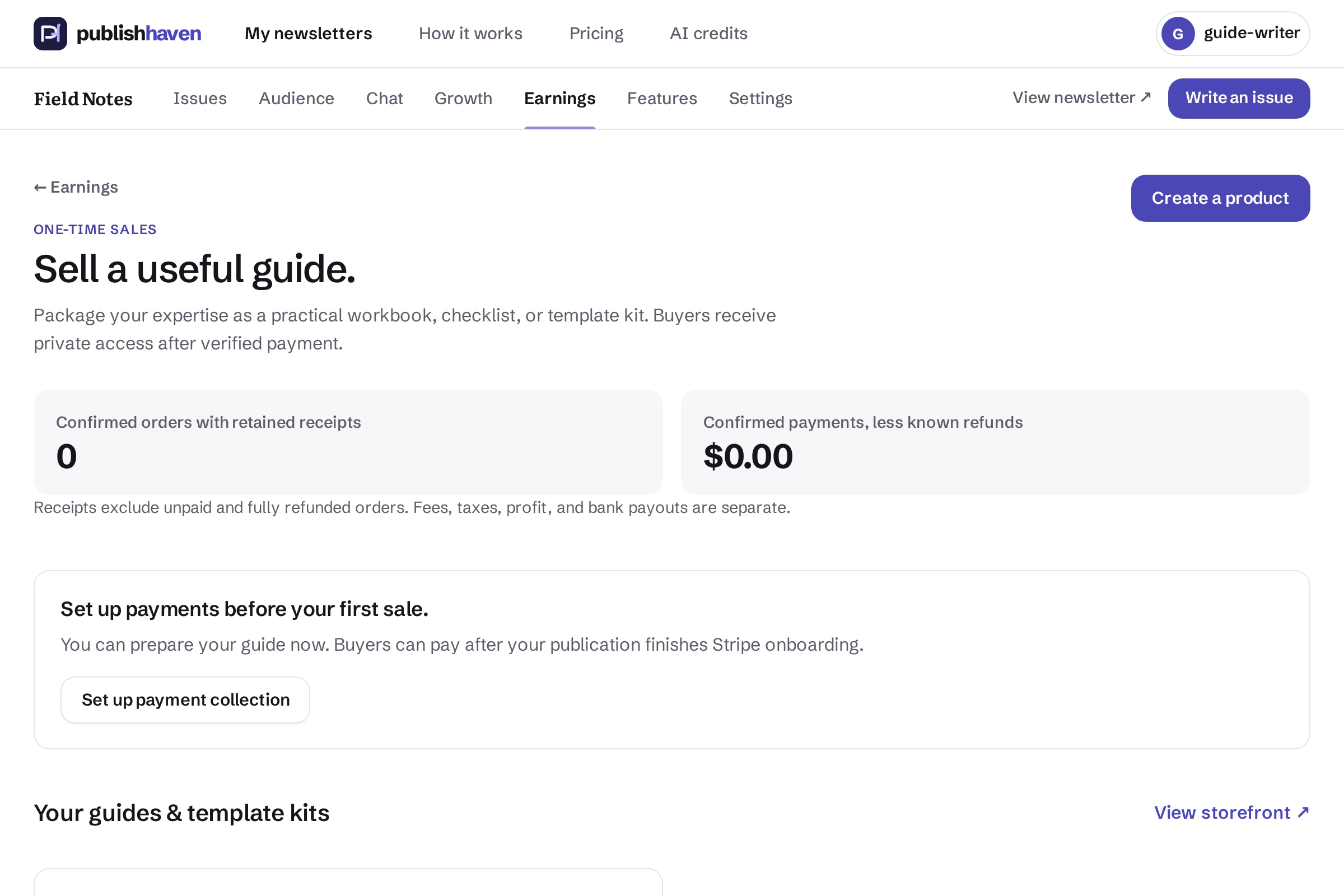
Create the guide
Open Guides and create a product. Add a title, description and the full guide content.
Set the offer
Choose the price and refund policy. Preview what readers will see before publishing.
Attach working files
Where Guide files is released and enabled, edit the guide and upload attachments. Wait for a clean scan; pending, held and rejected files cannot be downloaded.
Publish and check the receipt flow
Publish the guide and review its public offer. A verified buyer uses their private receipt for access and renewed download links. New versions do not silently replace earlier purchases.
What you should see
A published guide with a clear price; verified buyers receive private access.
Check before you continue
Where file delivery is enabled, attachments stay private and must pass format checks and malware scanning. A pending or held attachment is unavailable to buyers. Writers can retry a held infrastructure scan, but a rejected file cannot bypass scanning. Abandoned uploads are removed after one day, and existing purchase files are protected. PDF rendering has a thirty-second limit. PDF and file download links expire; return to your receipt to request a new link.
If a step is unavailable
Check the plan and feature status shown in your workspace. “Not released yet” or “Setup on hold” needs platform work. “Connect” or “One step left” links to an action you can take. A pending scan, send or payment must finish before its result is available.
If the result still does not appear, contact support@publishhaven.com with the service name and the visible message. Keep private reading links, passwords and payment details out of the message.