 publish
Create cover art for an issue
One reviewed cover is chosen for your issue; unused options expire.
Before you start
A paid plan, release, published issue, processing consent and 10 credits.
Where to find it: Newsletter → Reader & revenue features → Cover art
Open My newsletters →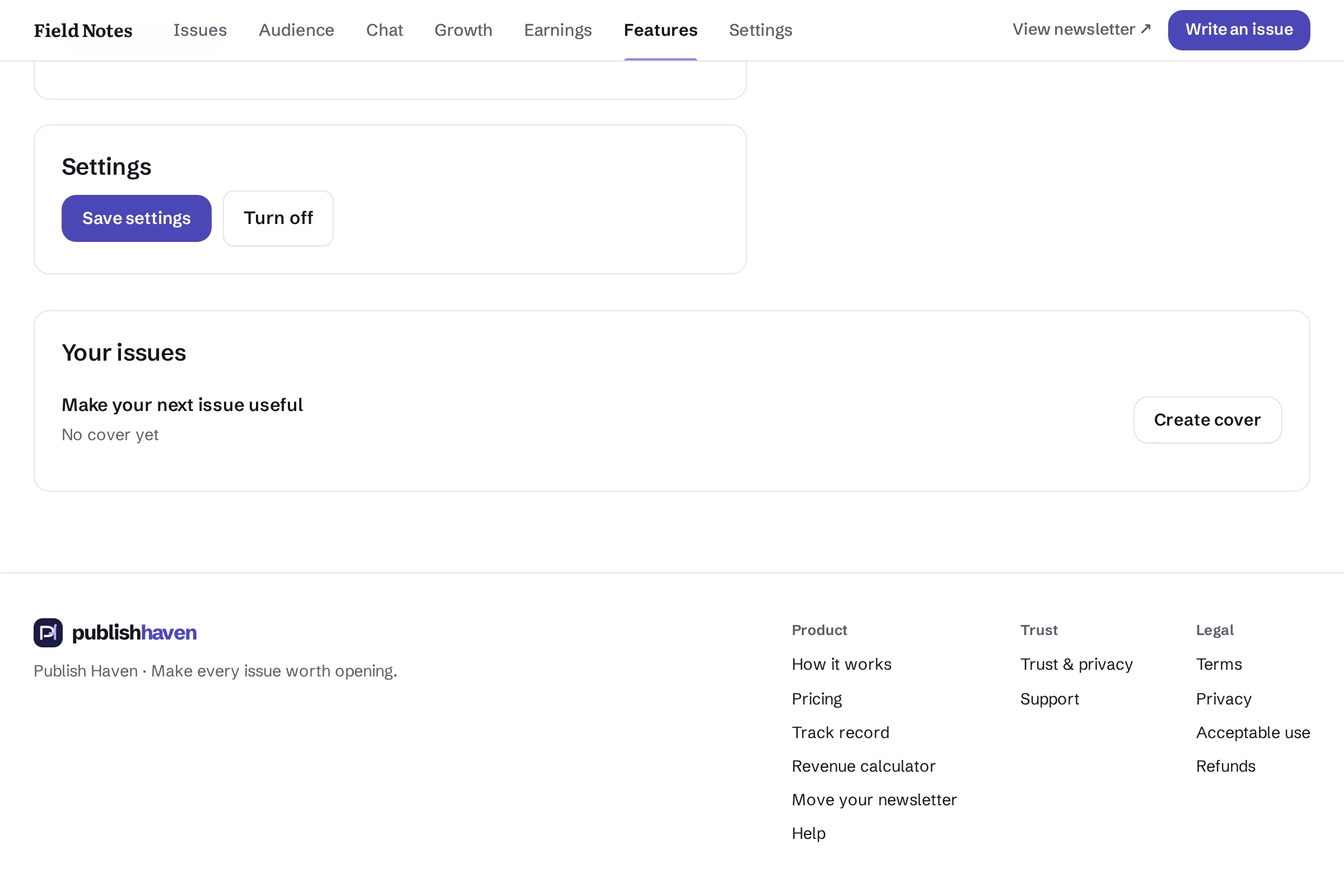
Open Cover art
Enable the released feature and review the named processing provider in the consent notice.
Choose an issue and style
Press Create cover beside the published issue and choose its style. One request reserves 10 credits for four options.
Inspect all options
Wait for the options and check text, people and details. Do not publish an inaccurate or unsafe image.
Choose and describe the cover
Write useful alternative text and choose the option you want. Check the issue page. Unchosen options expire after seven days; failed generation refunds credits.
What you should see
One reviewed cover is chosen for your issue; unused options expire.
Check before you continue
One generation costs ten credits. Failed generations refund the reserved credits. Generated pictures can contain mistakes, so inspect text, people and details before publishing. Unchosen options are removed after seven days.
If a step is unavailable
Check the plan and feature status shown in your workspace. “Not released yet” or “Setup on hold” needs platform work. “Connect” or “One step left” links to an action you can take. A pending scan, send or payment must finish before its result is available.
If the result still does not appear, contact support@publishhaven.com with the service name and the visible message. Keep private reading links, passwords and payment details out of the message.