 publish
Review newsletter analytics
You understand activity without mistaking estimates for receipts or income.
Before you start
Your own newsletter with real reader activity.
Where to find it: Newsletter → Audience → Analytics
Open My newsletters →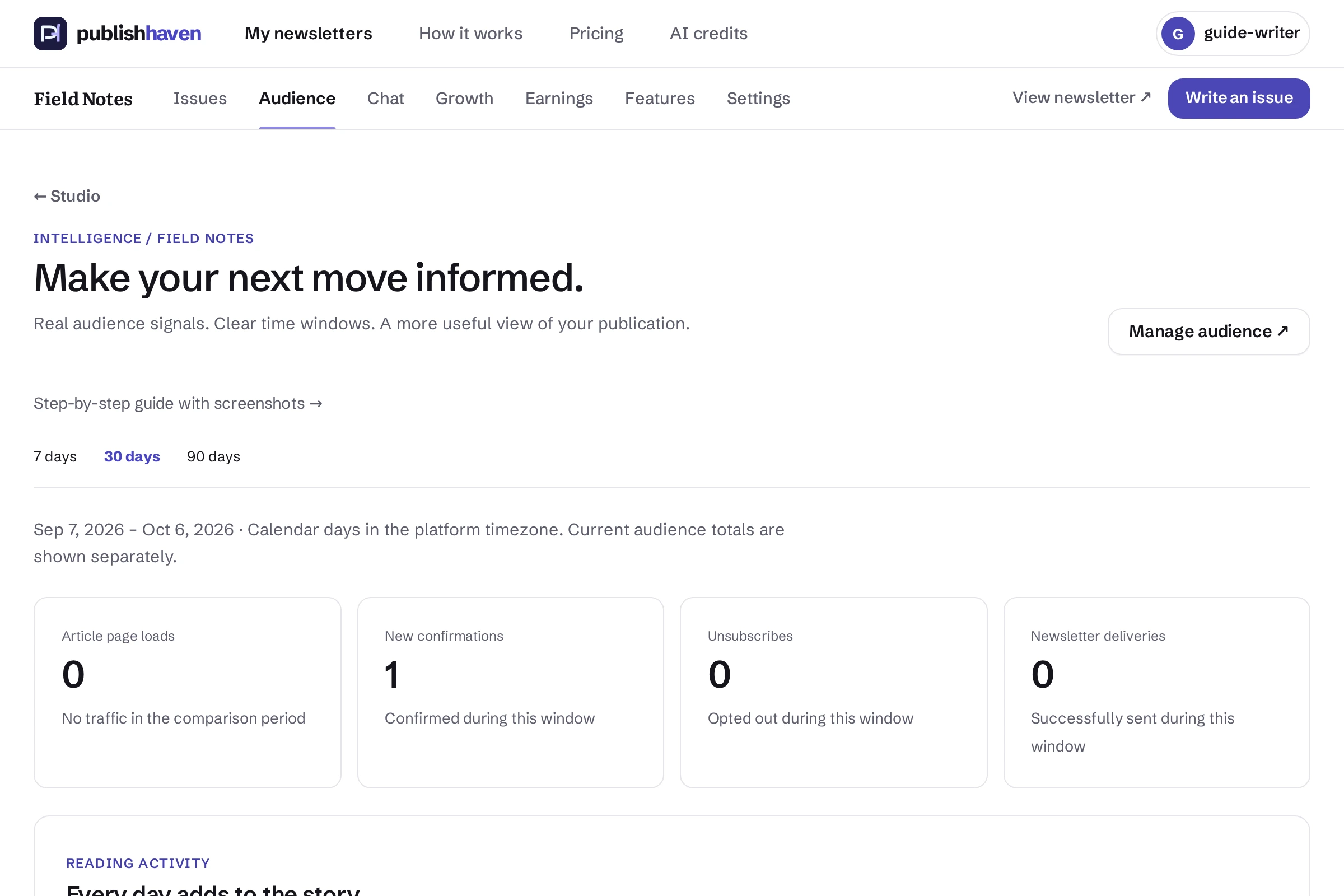
Open analytics
Choose Audience and open the analytics link.
Select the period
Use the available date or period controls and check what the displayed figures cover.
Compare related signals
Compare visits, confirmed subscriptions and delivery activity. Open proxies can inflate apparent reads.
Choose a next action
Use repeated results to guide your next issue, and inspect Earnings separately for verified income.
What you should see
You understand activity without mistaking estimates for receipts or income.
Check before you continue
Analytics are estimates. Proxy opens, bots and image blocking affect activity. Visits and subscribers are not revenue.
If a step is unavailable
Check the plan and feature status shown in your workspace. “Not released yet” or “Setup on hold” needs platform work. “Connect” or “One step left” links to an action you can take. A pending scan, send or payment must finish before its result is available.
If the result still does not appear, contact support@publishhaven.com with the service name and the visible message. Keep private reading links, passwords and payment details out of the message.