 publish
Manage platform administration
You can review the recorded platform activity and open the existing management tools.
Before you start
An authorized platform staff account; account details also require permission to view users.
Where to find it: Administration → Platform overview
Open administration →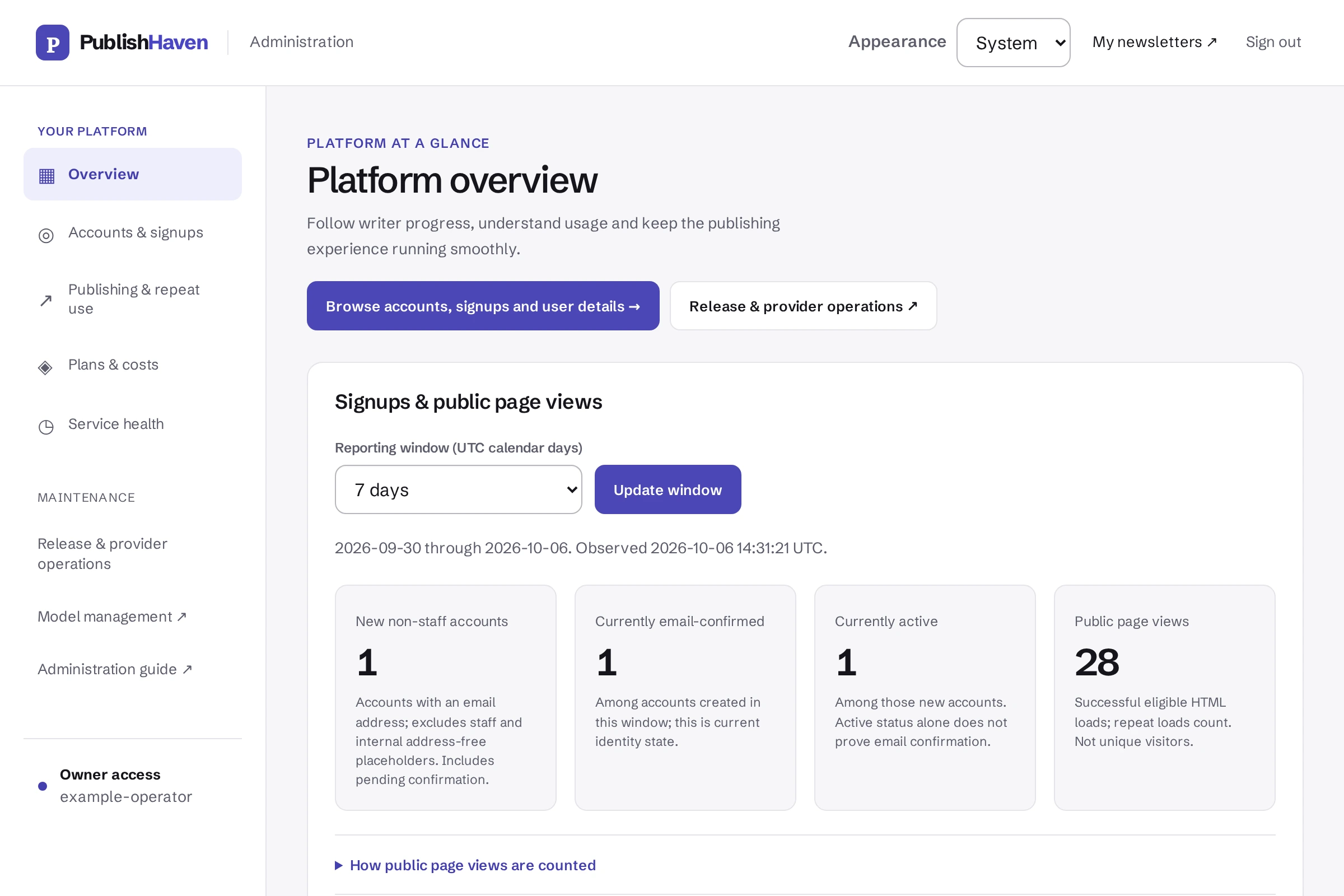
Open administration
Sign in with your authorized staff account and open Platform overview. A normal writer account cannot access these records.
Review the period
Choose 7, 30 or 90 UTC calendar days. Compare signups with current confirmation status, public page counts and recorded AI costs. Earlier dates without collection are marked Not recorded.
Inspect accounts
Open Accounts & signups. Search by username, email or account ID, filter the current status and select an account to review its newsletters and workspace billing record. The directory is read-only.
Check operations and release evidence
Review worker health, failed jobs, queued payments and release checks. Open Model management for permitted changes. An approved release does not create missing reviews, inbox receipts or backup restoration evidence.
What you should see
You can review the recorded platform activity and open the existing management tools.
Check before you continue
Only authorized platform staff can open the administration pages. Public page counts start when collection is deployed; they are not unique visitors, conversion or revenue.
If a step is unavailable
Check the plan and feature status shown in your workspace. “Not released yet” or “Setup on hold” needs platform work. “Connect” or “One step left” links to an action you can take. A pending scan, send or payment must finish before its result is available.
If the result still does not appear, contact support@publishhaven.com with the service name and the visible message. Keep private reading links, passwords and payment details out of the message.